Creator start-to-payout guide

From registration to your first creator payout

This is the whole BigFan creator journey. Create an account, verify the profile your fans know, publish your page, receive support, and follow your share through Stripe to your bank.

BigFan setup takes about 15 minutes. Stripe review and bank arrival can take longer.

Before checkpoint 1

Have these ready

Stopping halfway is fine, but these items make the setup much quicker.

  • An email address you check often
  • An Instagram Business or Creator account, or a TikTok creator profile
  • A short public bio and the BigFan handle you want
  • Your legal identity details and home address for Stripe
  • Your IBAN or bank details for payouts
  • A photo ID and proof of address in case Stripe requests them

What happens to a successful €100 payment

  1. 1

    Fan pays €100

    Stripe confirms checkout

  2. 2

    BigFan keeps €40

    Platform share and processing costs

  3. 3

    Your Stripe gets €60

    Your creator share

  4. 4

    Stripe pays your bank

    When funds become available

7 checkpoints

Your route from sign-up to bank payout

Checkpoint 1

Create your BigFan account

This account protects your page, dashboard, and Stripe connection.

  1. 1Open Create your page and choose Google, or enter your email and a new password.
  2. 2Use an email address you can keep. BigFan and Stripe may send account or payout notices there.
  3. 3Complete any email verification code shown during sign-up.
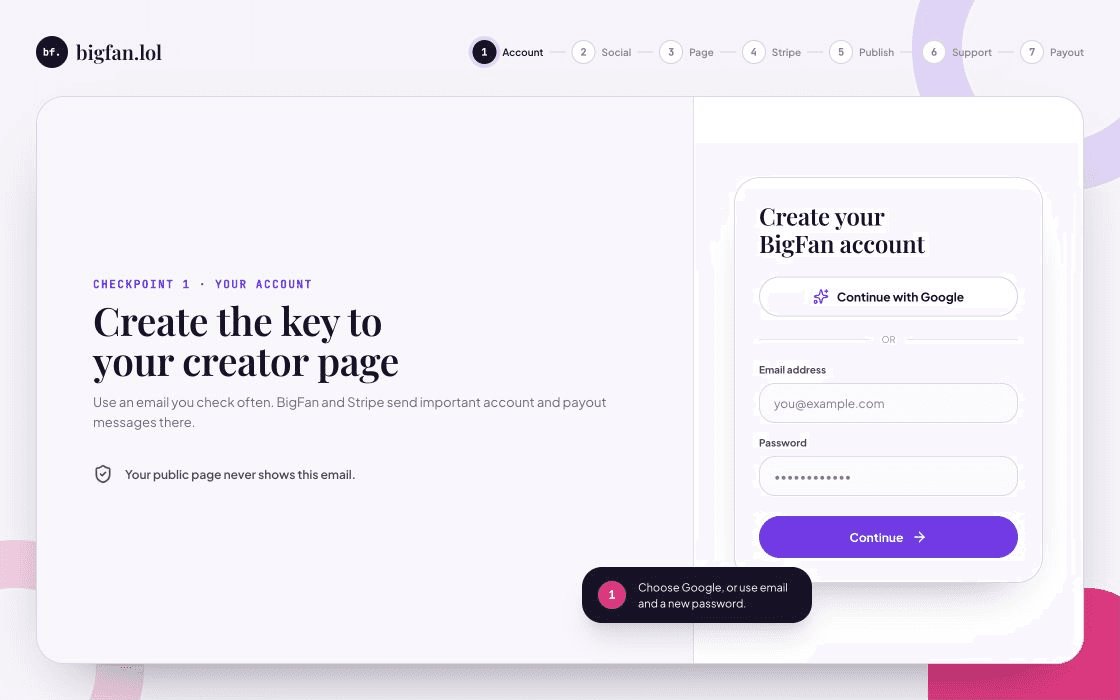
Illustrated BigFan registration screen with Google, email, and password choices
Illustrated screenshot. The exact wording can change when BigFan, a social provider, or Stripe updates a screen.
Checkpoint 2

Verify the social profile you control

Your verified social identity tells fans that the BigFan page belongs to the right creator.

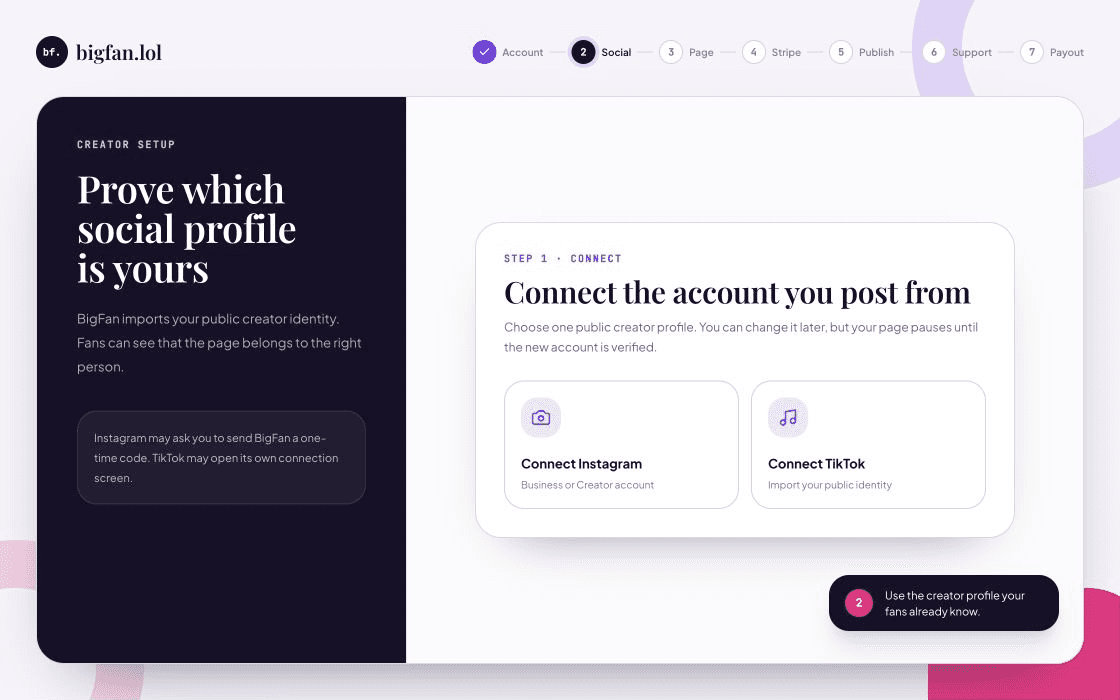
  1. 1Choose Instagram or TikTok in creator setup.
  2. 2For Instagram, use a Business or Creator account. BigFan may ask you to send a one-time code by private message.
  3. 3Finish the provider screen, then return to BigFan. Do not share a private verification link or code.
Illustrated BigFan creator setup screen with Instagram and TikTok verification choices
Illustrated screenshot. The exact wording can change when BigFan, a social provider, or Stripe updates a screen.
Checkpoint 3

Create the page your fans will visit

Choose the public identity, page address, and payment currency before you publish.

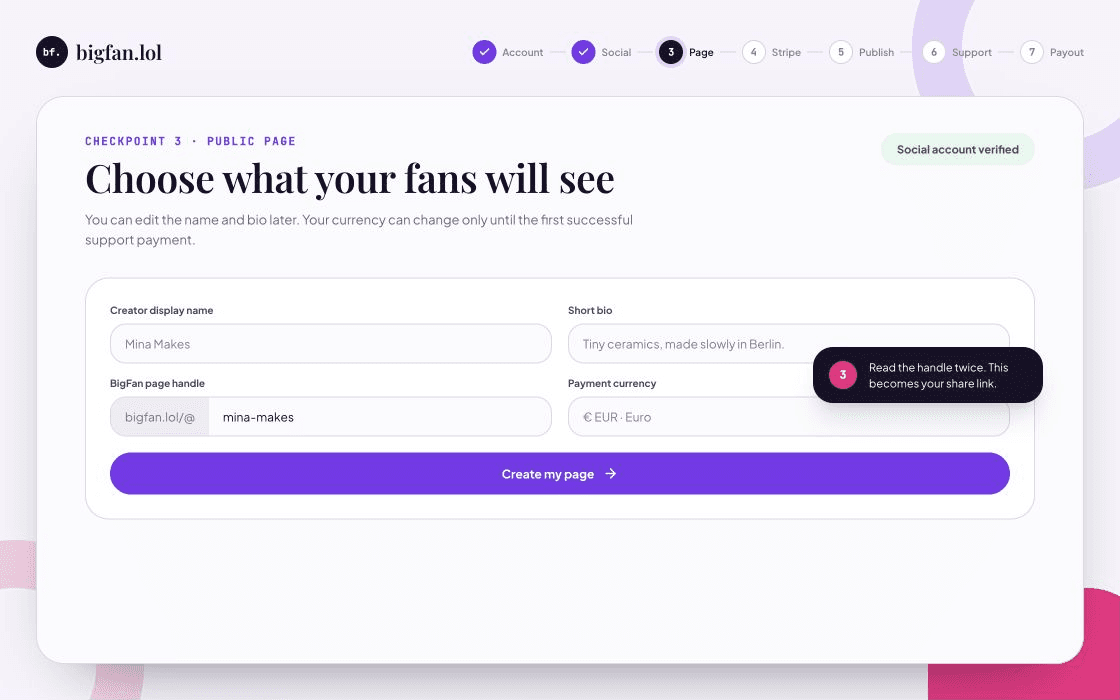
  1. 1Check your display name and write a short bio that says what you create.
  2. 2Read the BigFan handle carefully. It becomes the link you share with fans.
  3. 3Choose EUR or USD. You can change the currency only until the first successful payment lands.
Illustrated creator page form with display name, bio, BigFan handle, and currency
Illustrated screenshot. The exact wording can change when BigFan, a social provider, or Stripe updates a screen.
Checkpoint 4

Connect Stripe and your bank account

Fans cannot pay until Stripe can accept charges for your connected account.

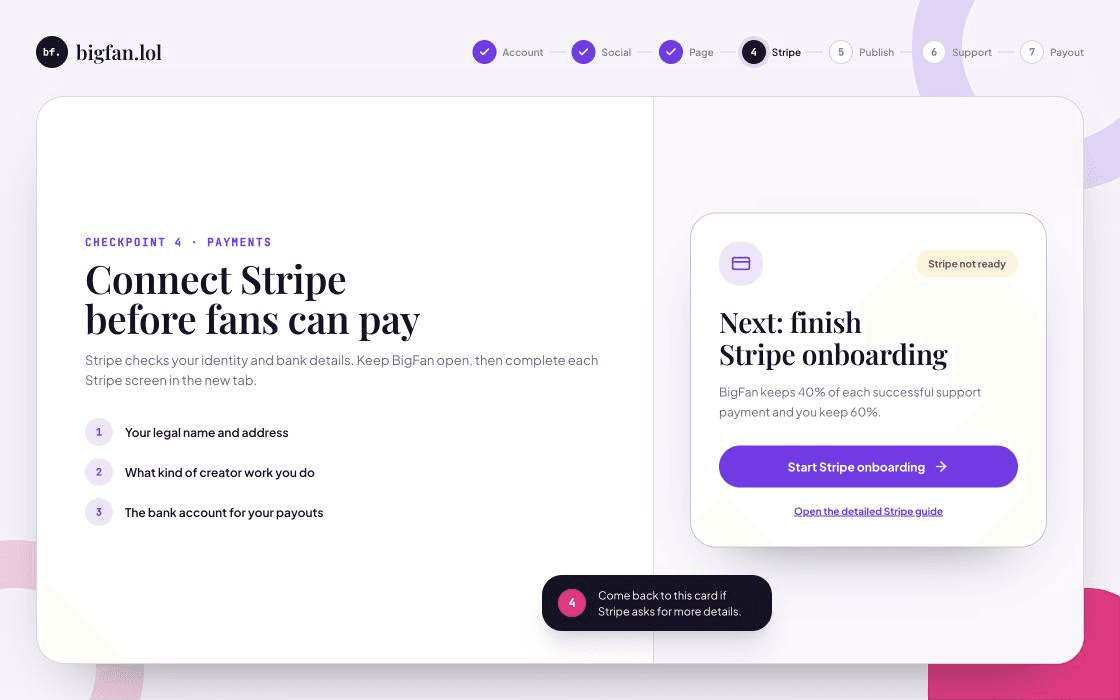
  1. 1In your dashboard, press Start Stripe onboarding. Stripe opens in a new tab.
  2. 2Enter your legal details, describe your creator work, and add the bank account for payouts.
  3. 3Return to BigFan and read the Stripe status card. Continue with Stripe if it requests another detail or document.
Read the detailed Stripe Connect guide
Illustrated BigFan dashboard card prompting the creator to start Stripe onboarding
Illustrated screenshot. The exact wording can change when BigFan, a social provider, or Stripe updates a screen.
Checkpoint 5

Publish the page and share its link

Publishing makes your board visible. Stripe readiness makes checkout available.

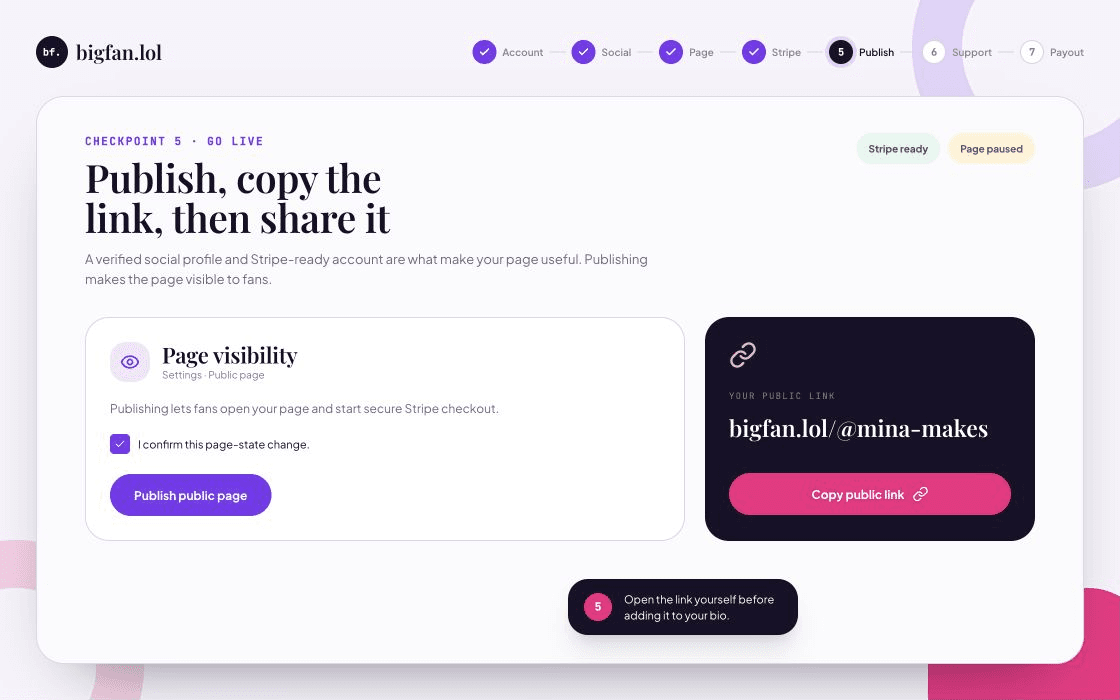
  1. 1Open Dashboard, then Settings, then Page visibility.
  2. 2Confirm the page-state change and press Publish public page.
  3. 3Copy the public link, open it yourself, then add it to your social bio or share it with fans.
Illustrated BigFan settings screen with page publishing and public link controls
Illustrated screenshot. The exact wording can change when BigFan, a social provider, or Stripe updates a screen.
Checkpoint 6

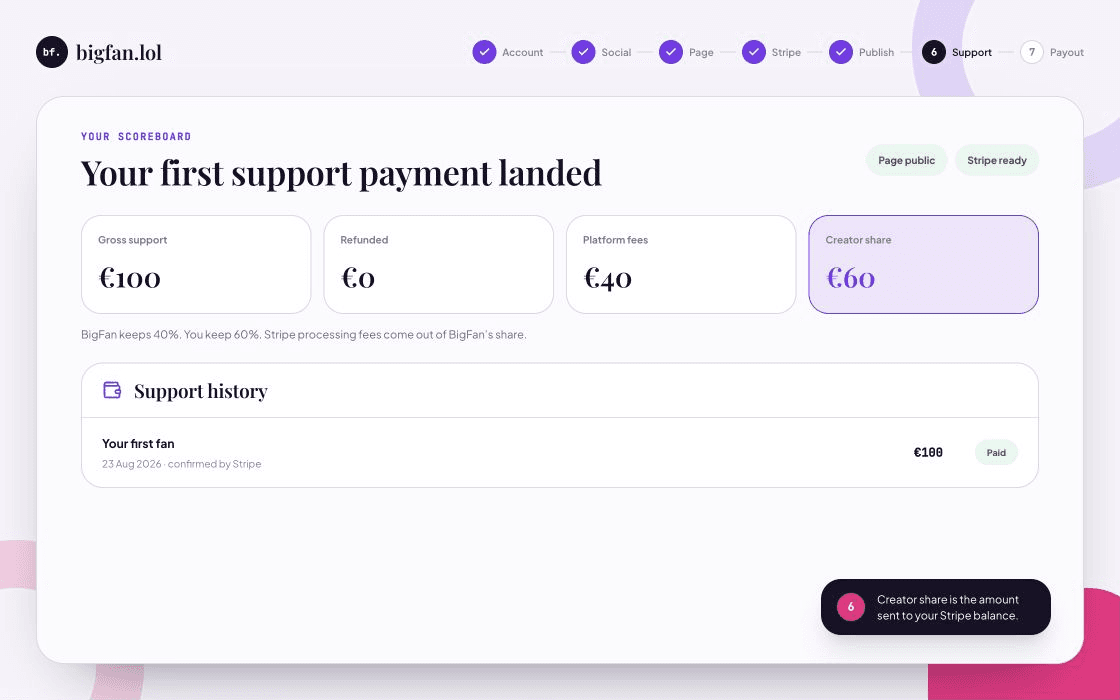
Watch the first successful payment arrive

A fan pays through Stripe Checkout. BigFan updates the board only after Stripe confirms success.

  1. 1The Overview tab shows gross support, refunds, BigFan fees, and your creator share.
  2. 2BigFan keeps 40% and transfers your 60% creator share to the connected Stripe account.
  3. 3Creator share is not the same as bank-available money. Stripe decides when the balance becomes available for payout.
Illustrated BigFan creator dashboard with a first payment and a highlighted creator share
Illustrated screenshot. The exact wording can change when BigFan, a social provider, or Stripe updates a screen.
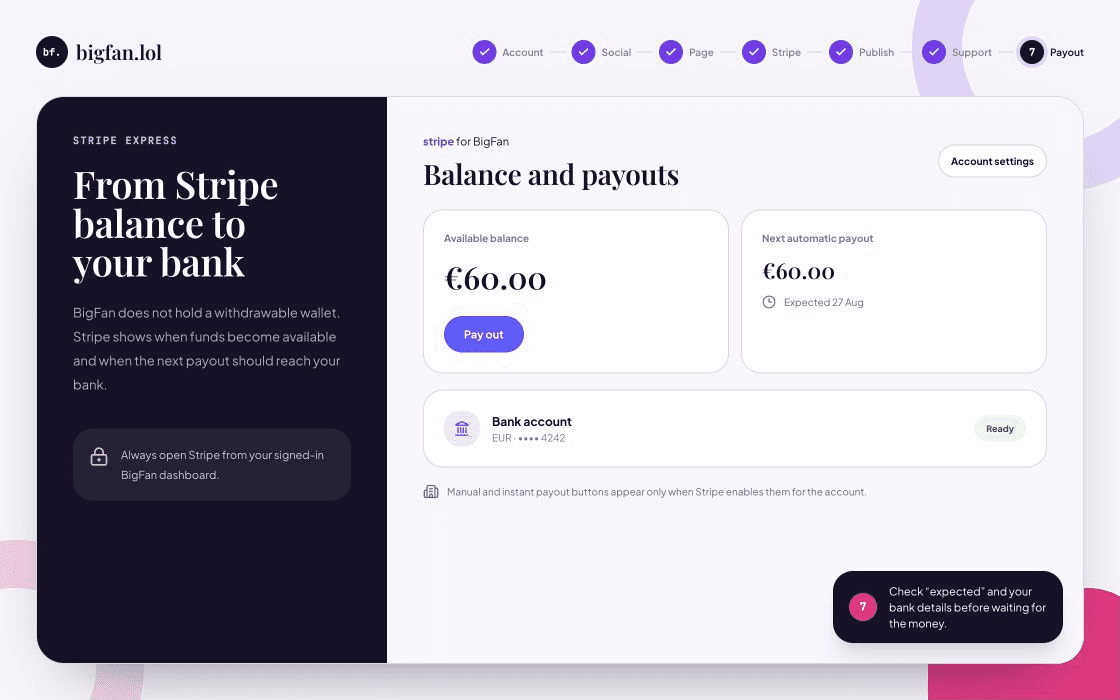
Checkpoint 7

Follow the payout from Stripe to your bank

Stripe Express is where you see available funds, upcoming payouts, and the destination bank.

  1. 1In BigFan, press Open Stripe dashboard under Stripe balance and payouts.
  2. 2Check Available balance, Next payout, Expected arrival, and the last digits of the bank account.
  3. 3Use Pay out only if Stripe shows it. Otherwise, Stripe sends the automatic payout on the schedule shown.
Illustrated Stripe Express balance screen with available funds, next payout, and bank account
Illustrated screenshot. The exact wording can change when BigFan, a social provider, or Stripe updates a screen.

3 green lights

You can receive a payout when all 3 are true

The three green lights live in two places: BigFan and Stripe Express.

Your page is public and Stripe is ready

Fans can open your page and complete checkout only after the payment account can accept charges.

A fan payment succeeded

BigFan counts confirmed payments. Failed, canceled, or expired checkouts do not create creator share.

Stripe marks the funds available

Stripe Express shows available balance, the next payout, its expected arrival, and the destination bank.

Money questions, answered plainly

Where is the withdraw button in BigFan?

There is not one. Open your BigFan dashboard, find Stripe balance and payouts, then press Open Stripe dashboard. Stripe shows your payout choices and automatic schedule.

Why does my dashboard show creator share but my bank has no money yet?

Creator share records the amount transferred to your connected Stripe account. Stripe still has to make the funds available and send the bank payout. Check the expected payout date in Stripe Express.

Can I request an instant or manual payout?

Only if Stripe enables that feature for your account and country. If Stripe Express does not show the button, wait for the automatic payout displayed there.

What happens if my bank details are wrong?

Open Stripe from your signed-in BigFan dashboard and update the payout bank account. Stripe can pause payouts after a failed payout until the account details are fixed.

Do I always keep 60%?

BigFan transfers 60% of each successful support payment to your Stripe account. Refunds, disputes, taxes, and negative balances follow the signed pilot terms and Stripe account rules.

Stripe controls payout timing

BigFan creates a secure, one-time Stripe Express login link. Stripe controls balance availability, payout schedules, manual payout eligibility, and the expected bank arrival date.

Last reviewed 23 August 2026

Ready for checkpoint 1?

Create your creator account now. Keep this guide open and move through one checkpoint at a time.

Create my creator account

Some cookies are needed to run the site. They keep your place on a fan board and keep sign-in secure. Others are optional, and we only set them if you say yes. You can change your answer at any time from the footer. Our Privacy Policy lists every cookie we use.