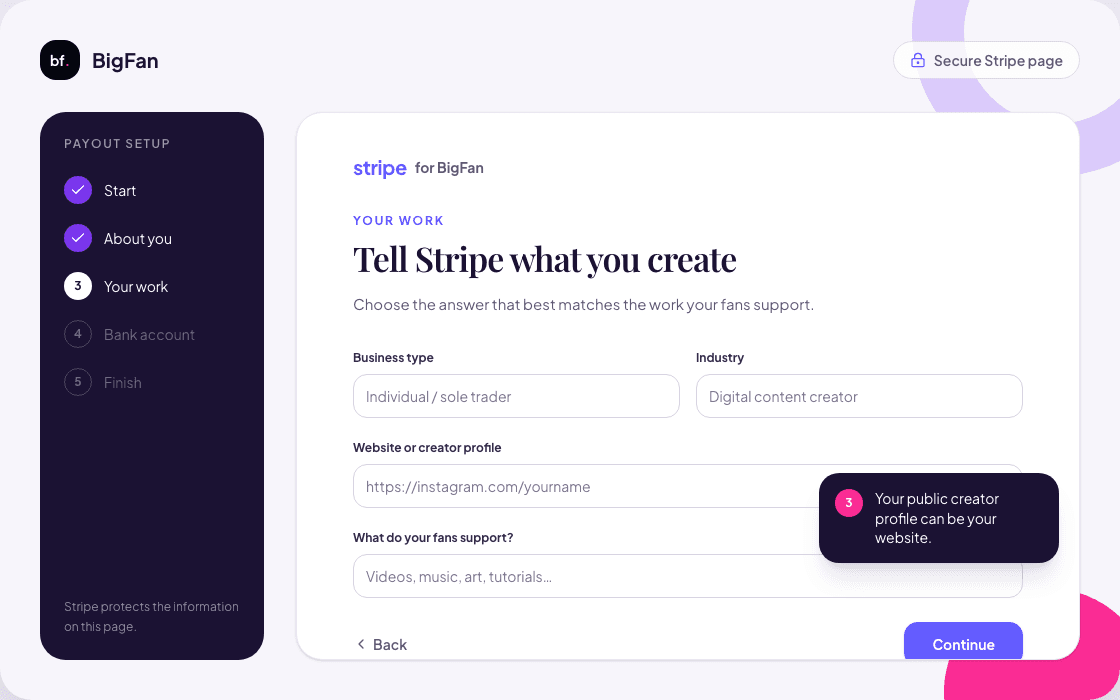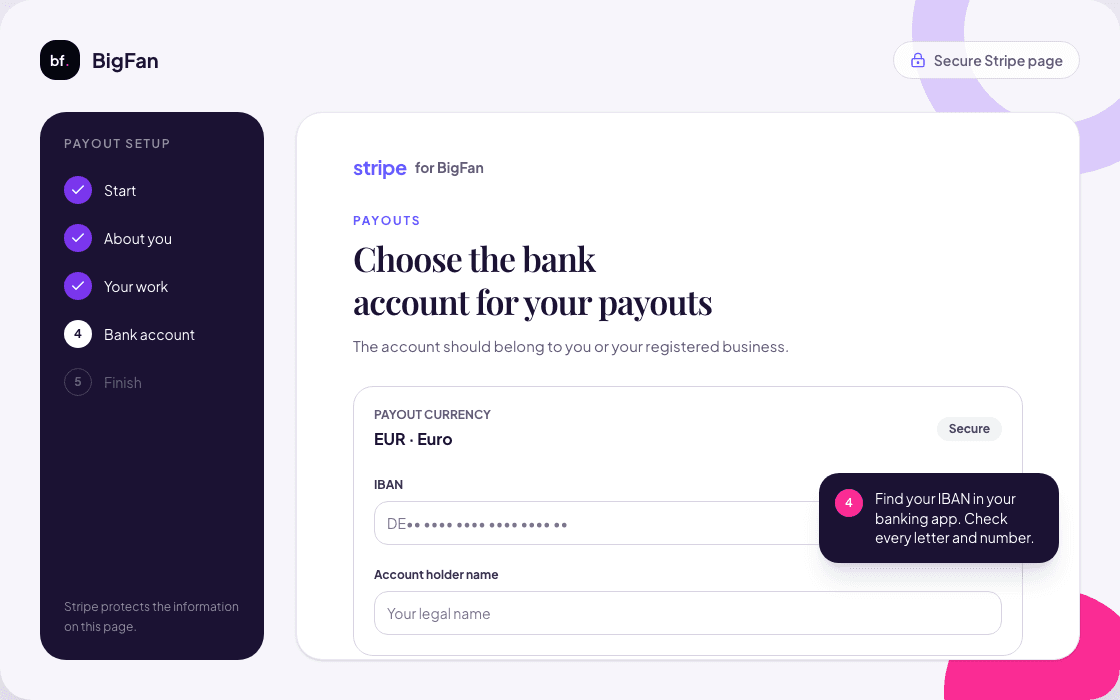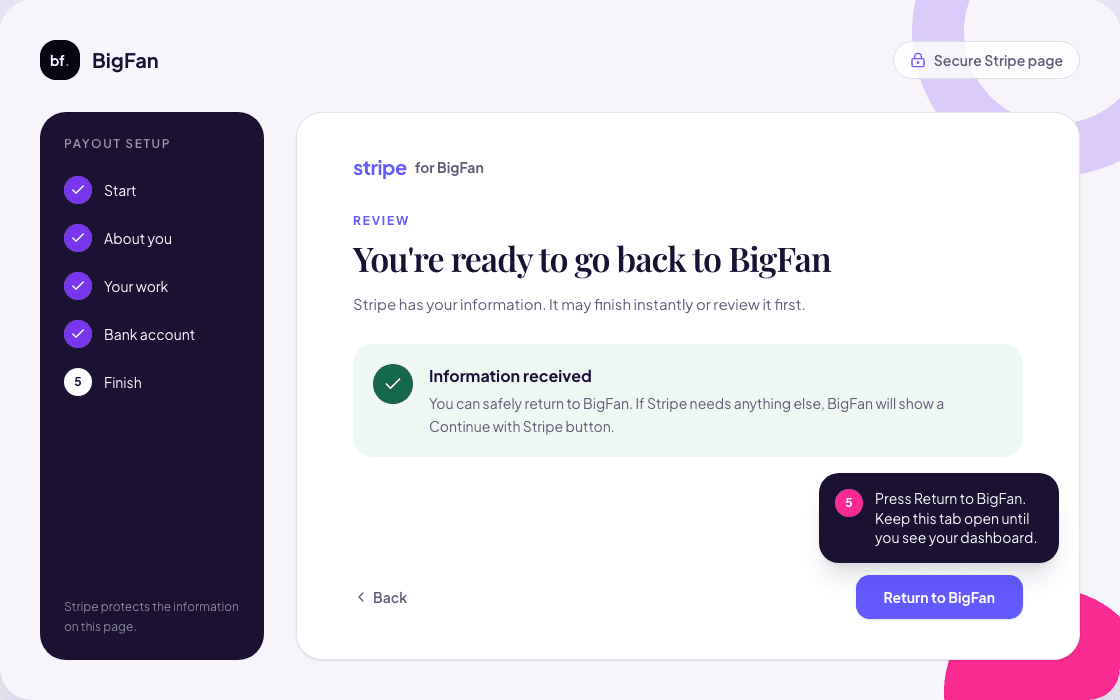
Open Stripe from BigFan
Sign in to BigFan and find the Stripe setup card in your creator dashboard.
- 1Press Start Stripe onboarding.
- 2A secure Stripe page opens in a new tab.
- 3If you stop and return later, use Continue with Stripe in the dashboard.
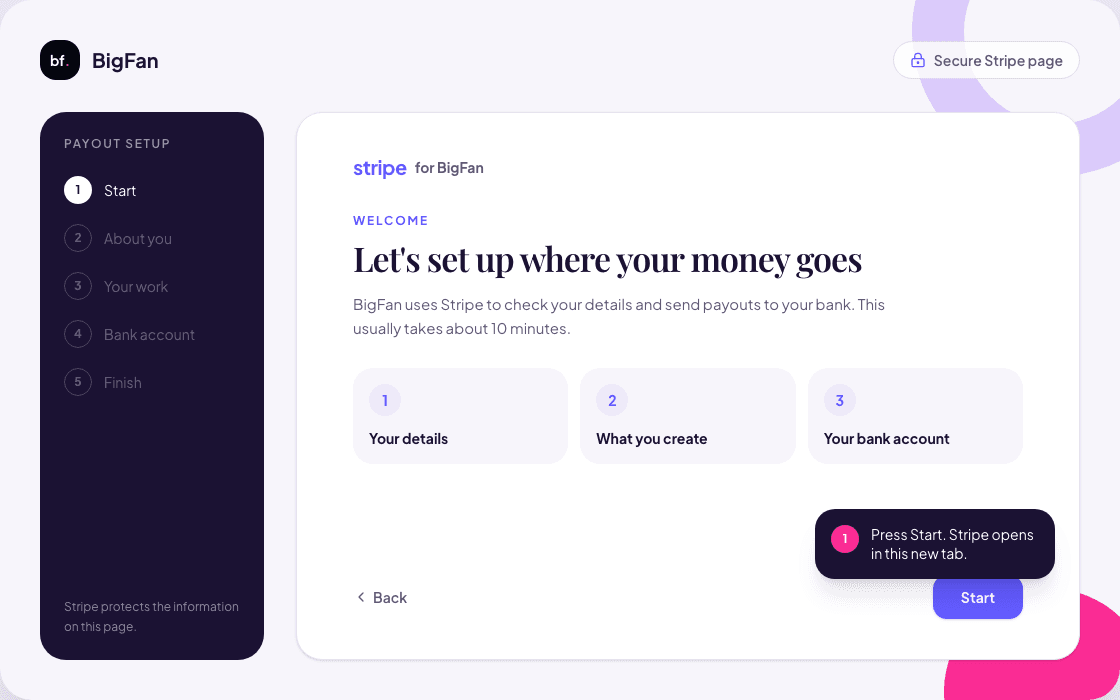
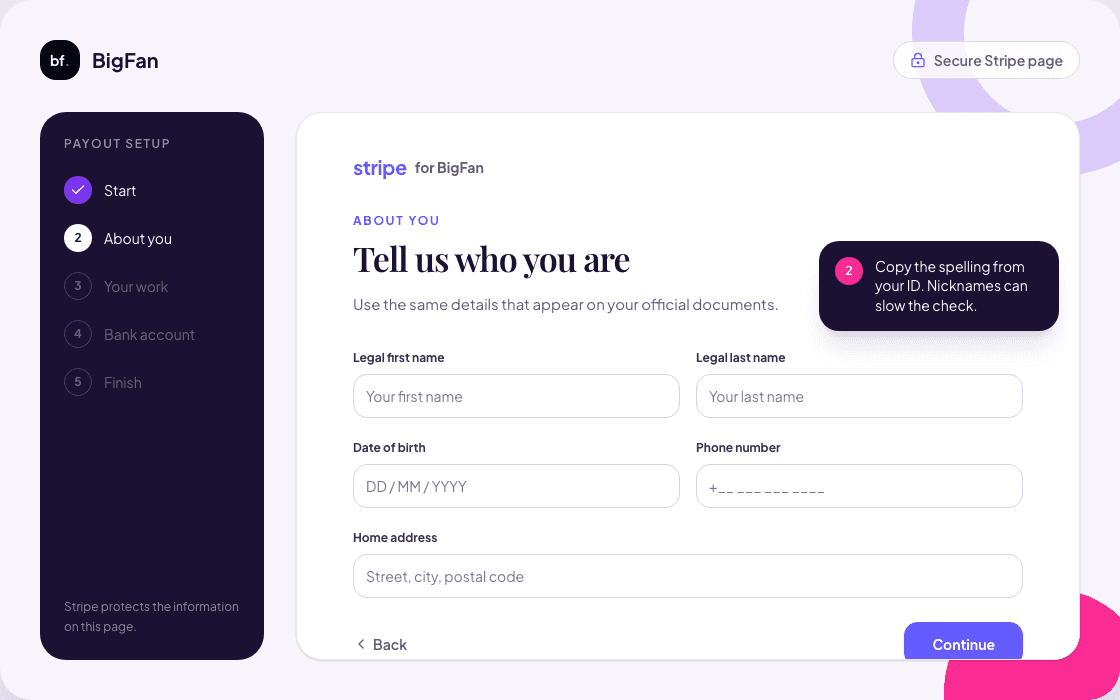
Creator guide
Stripe checks who you are and sends your BigFan payouts to your bank. You do not need to know anything about payments. Follow these screens one at a time.
About 10 minutes
Stripe may not ask for every item, but having them ready makes the setup easier.
5 steps
Sign in to BigFan and find the Stripe setup card in your creator dashboard.

Use the same details that appear on your official documents.

Stripe needs to understand the work that your fans support.

This is the account where Stripe will send your creator share.

Stripe checks the information and tells BigFan what still needs attention.

You are finished. BigFan can accept support payments and send your share to Stripe.
You do not need to start again. Keep an eye on your dashboard and email while Stripe checks the information.
Stripe needs one more detail or document. Press Continue with Stripe in your BigFan dashboard.
Go back to your BigFan dashboard and press Start Stripe onboarding or Continue with Stripe again. BigFan will make a fresh secure link.
That is fine. Return to BigFan when you are ready, then press Continue with Stripe. Your progress should still be there.
Wait for the review to finish. Do not create another Stripe account. Watch your email and BigFan dashboard for the next request.
Use a clear, bright photo with every corner visible. The name and address should match what you typed. Upload it only on the secure Stripe page.
Copy your legal name exactly from your ID and your IBAN exactly from your banking app. Check every letter and number before trying again.
This guide follows Stripe’s hosted onboarding and verification documentation. Stripe controls the onboarding screens and may update them.
Last reviewed 23 August 2026
Open your dashboard and look for the Stripe setup card. You can keep this guide open in another tab.
Some cookies are needed to run the site. They keep your place on a fan board and keep sign-in secure. Others are optional, and we only set them if you say yes. You can change your answer at any time from the footer. Our Privacy Policy lists every cookie we use.